1. Create your account
Open app.sole-traders.uk, choose Create an account, and pick a username and a password of at least 8 characters. An email address is optional, but add one: it's the only way to reset a forgotten password.
Running your own server? Tap the button with the gear under the login box, type your server's domain and press Test & Save before you sign up. The self-host guide covers setting one up.
2. Add your stock
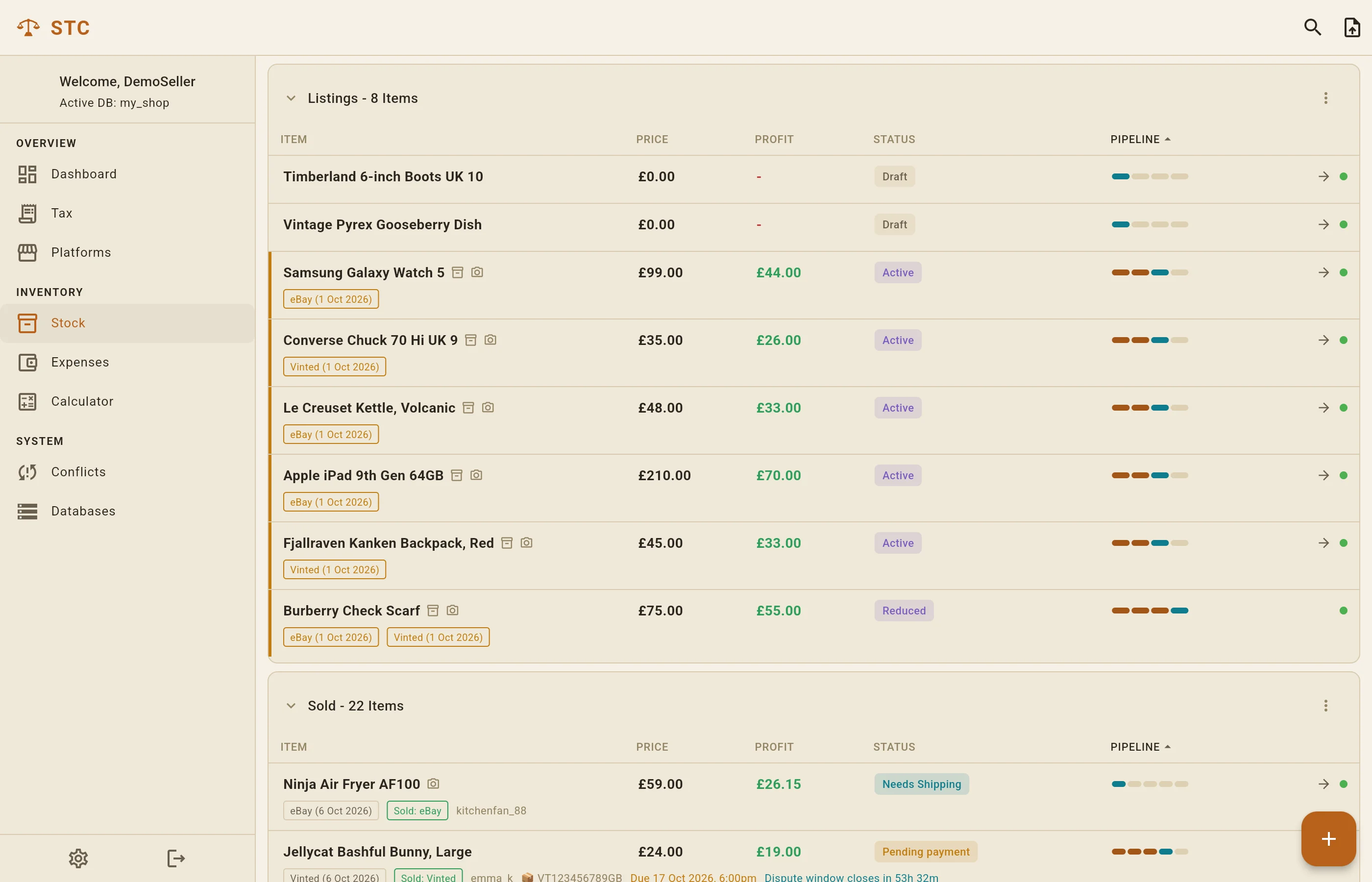
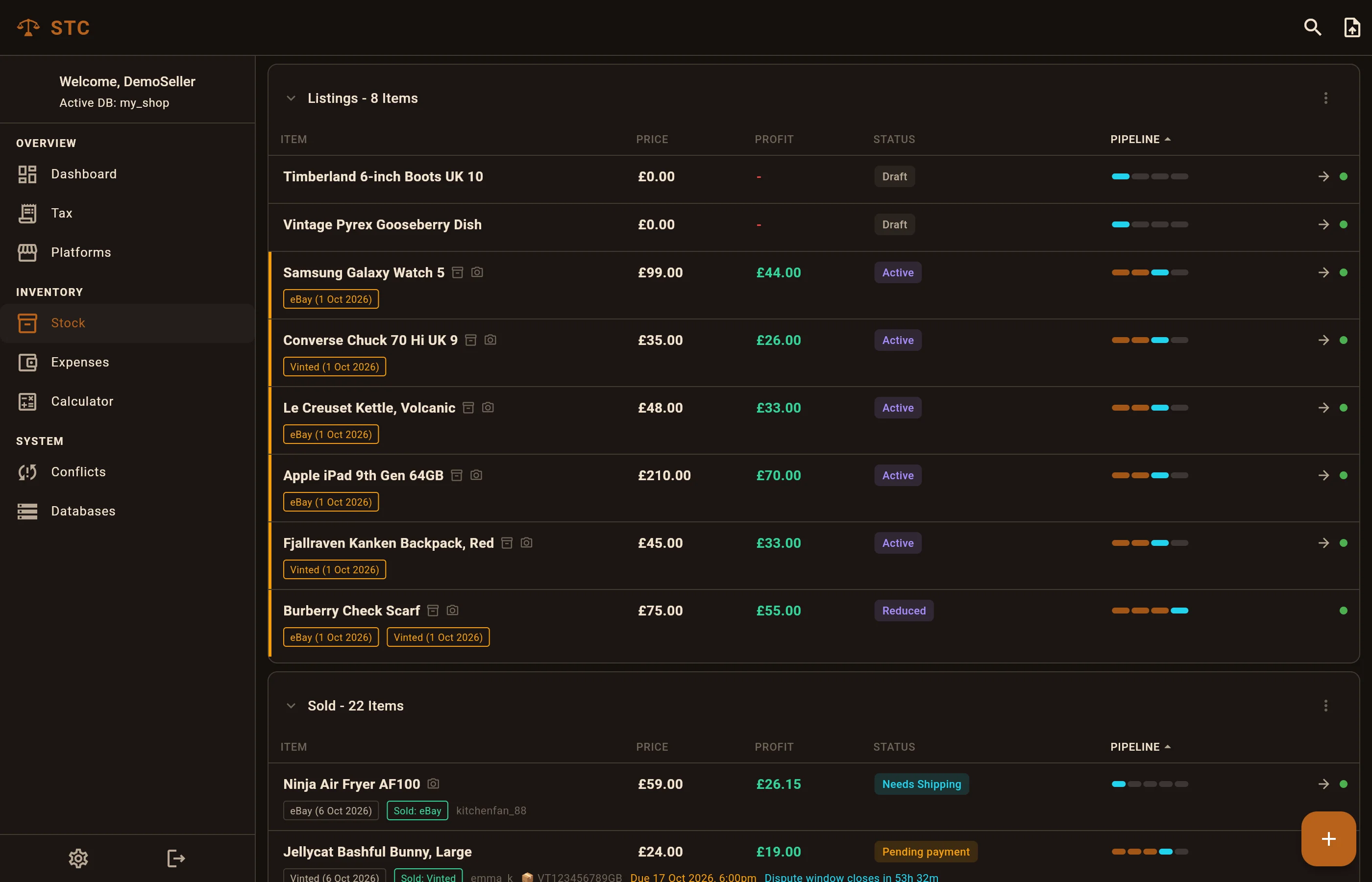
Go to Stock and press the orange + button. Give the item a name, and fill in what it cost you and where you got it. Everything else can wait. New items start as a Draft.
Got a lot of stock already in a spreadsheet? The import button at the top of the Stock screen takes a CSV.
3. Move items along
Every item has a pipeline bar showing where it's up to. Press the arrow at the end of its row to move it to the next step:
Draft → Ready to list → Active → Reduced
If a step needs something you haven't filled in yet, like a listing title, a description or photos before it's ready to list, STC asks for it there and then. Open an item to note which platforms it's listed on, with links to the listings. Listings that have sat around too long get flagged so you know what to reduce or relist.
4. Record a sale
When something sells, open it and fill in the sale price, the buyer, the platform it sold on, the fees and the postage. From then on the arrow walks it through:
Needs Shipping → Shipped → At collection point → Pending payment → Paid
STC asks for the tracking number when you mark it shipped and the payment date when you mark it paid. Profit for each item is worked out from the sale price minus what it cost, the fees and the postage.
5. Returns and refunds
If a buyer sends something back, move the item to a return and STC tracks it through Label sent, In transit and Returned, with the return tracking number and label cost. Refunds are recorded the same way, including anything the platform paid back to you, so your profit stays honest.
6. Log your expenses
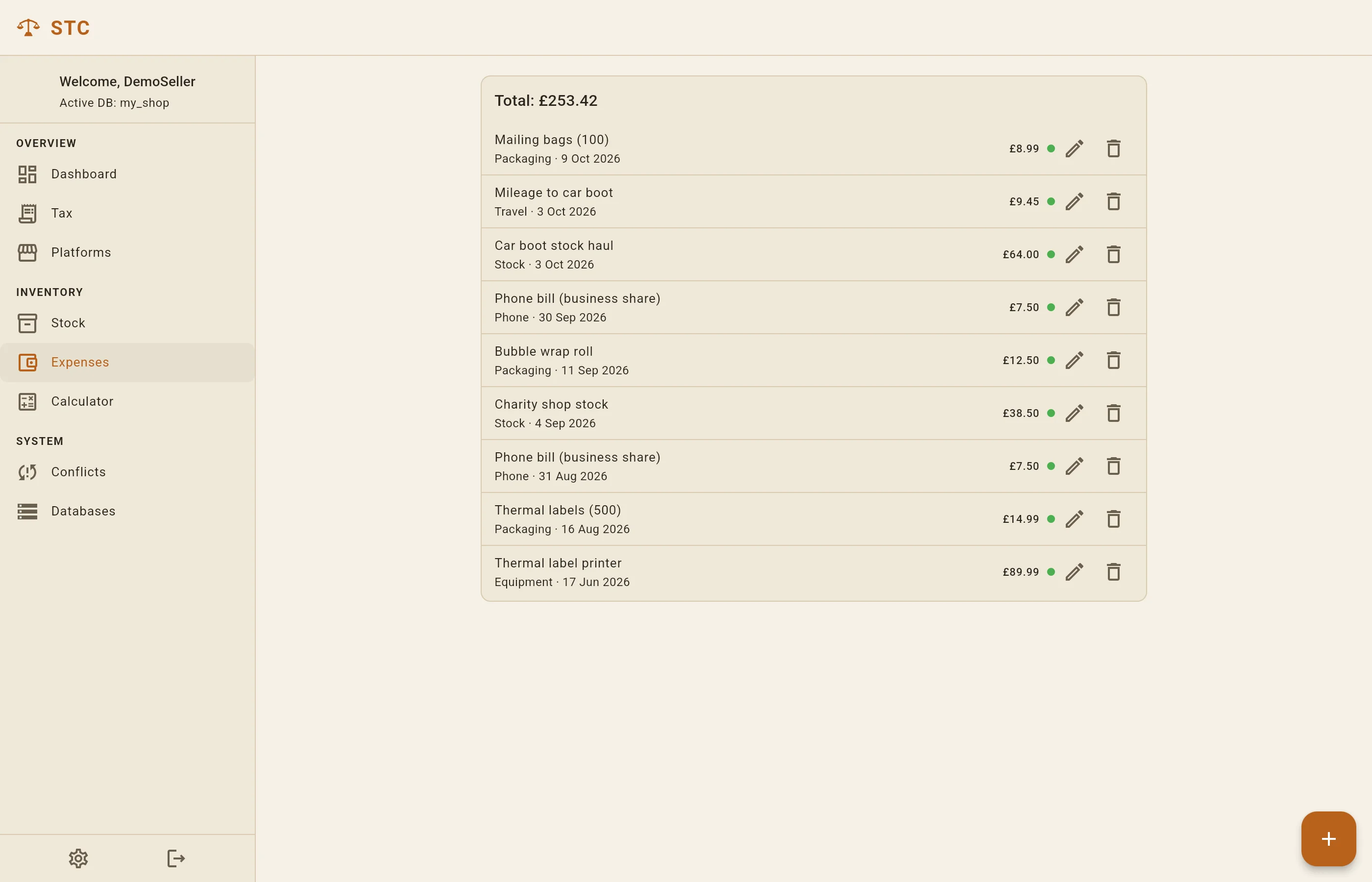
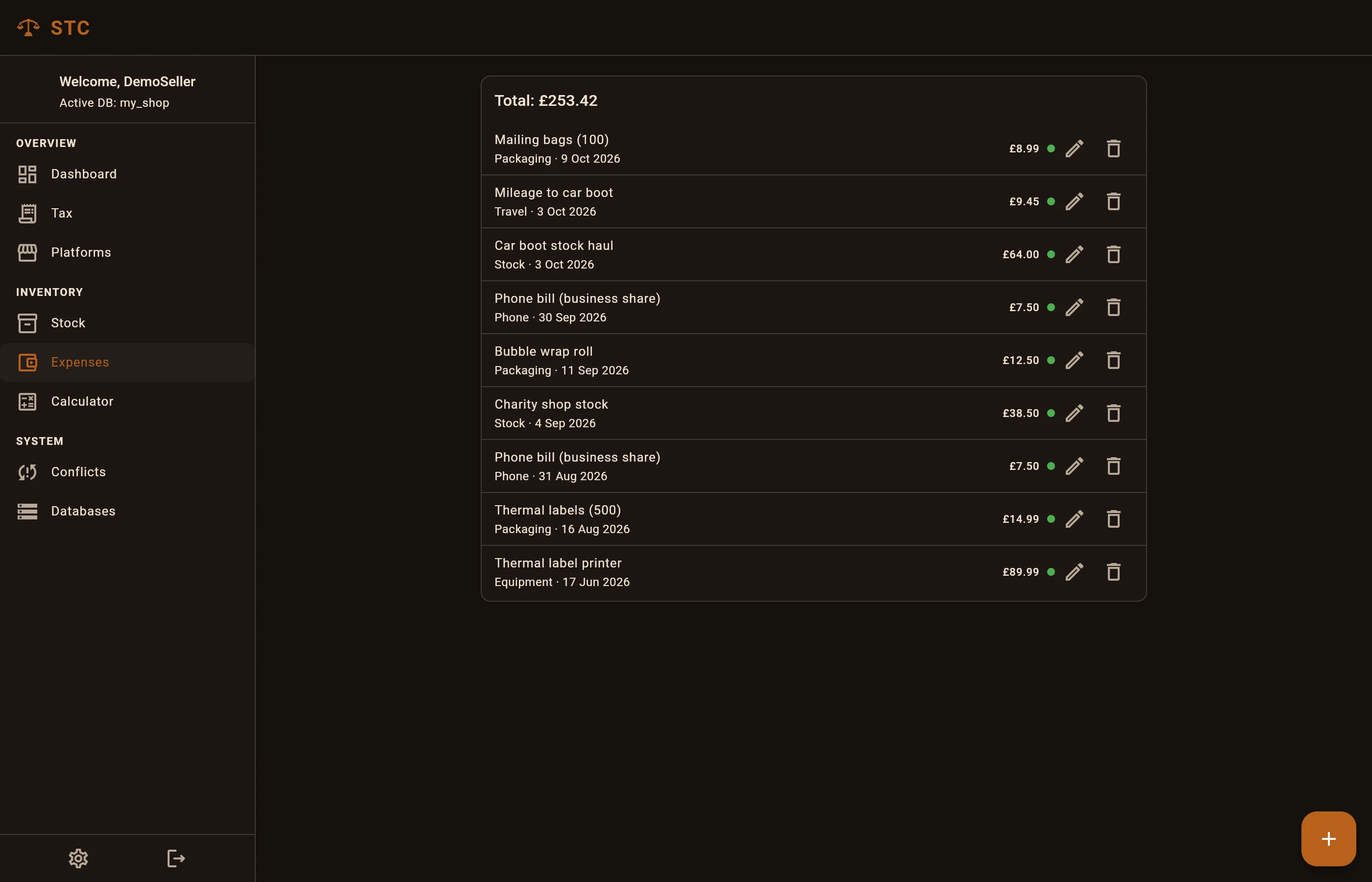
Everything that isn't a specific item goes in Expenses: mailing bags, labels, a car boot pitch, mileage, a share of your phone bill. Press +, add a description, a category, the amount and the date. They feed straight into your tax figures.
7. Check your numbers
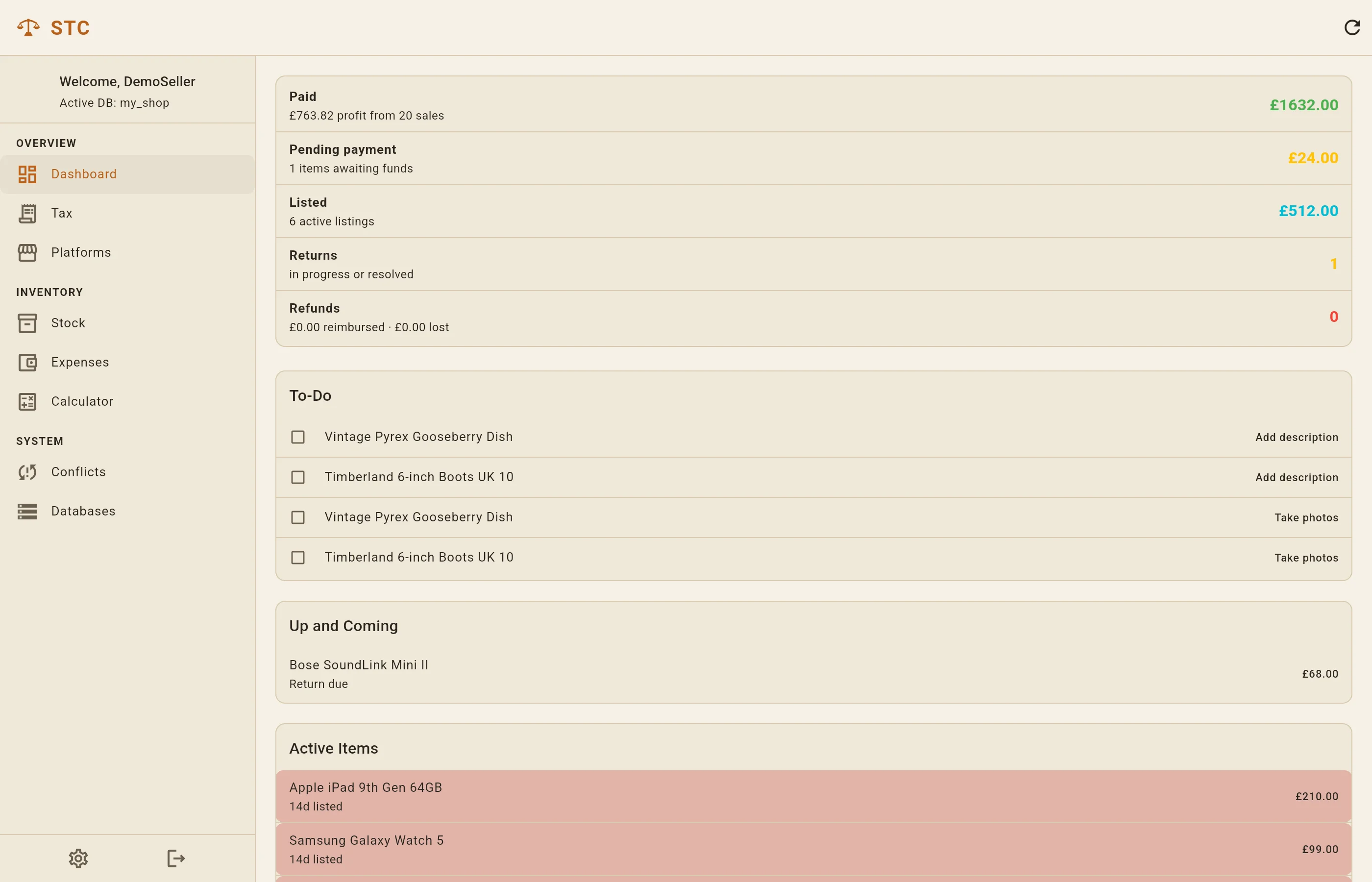
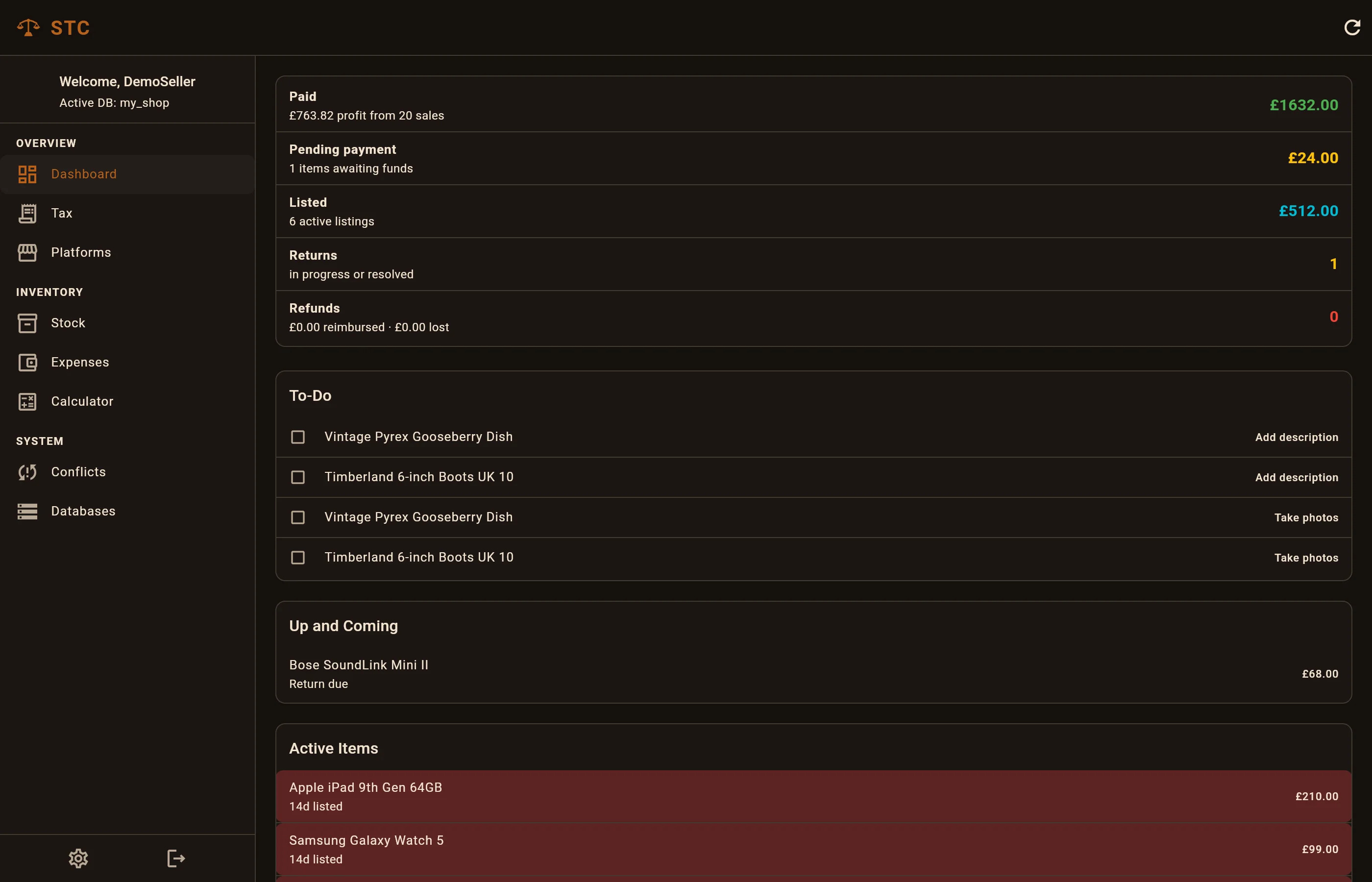
The Dashboard is the day-to-day view: what's paid, what's waiting on payment, what's listed, and a to-do list of what each item still needs.
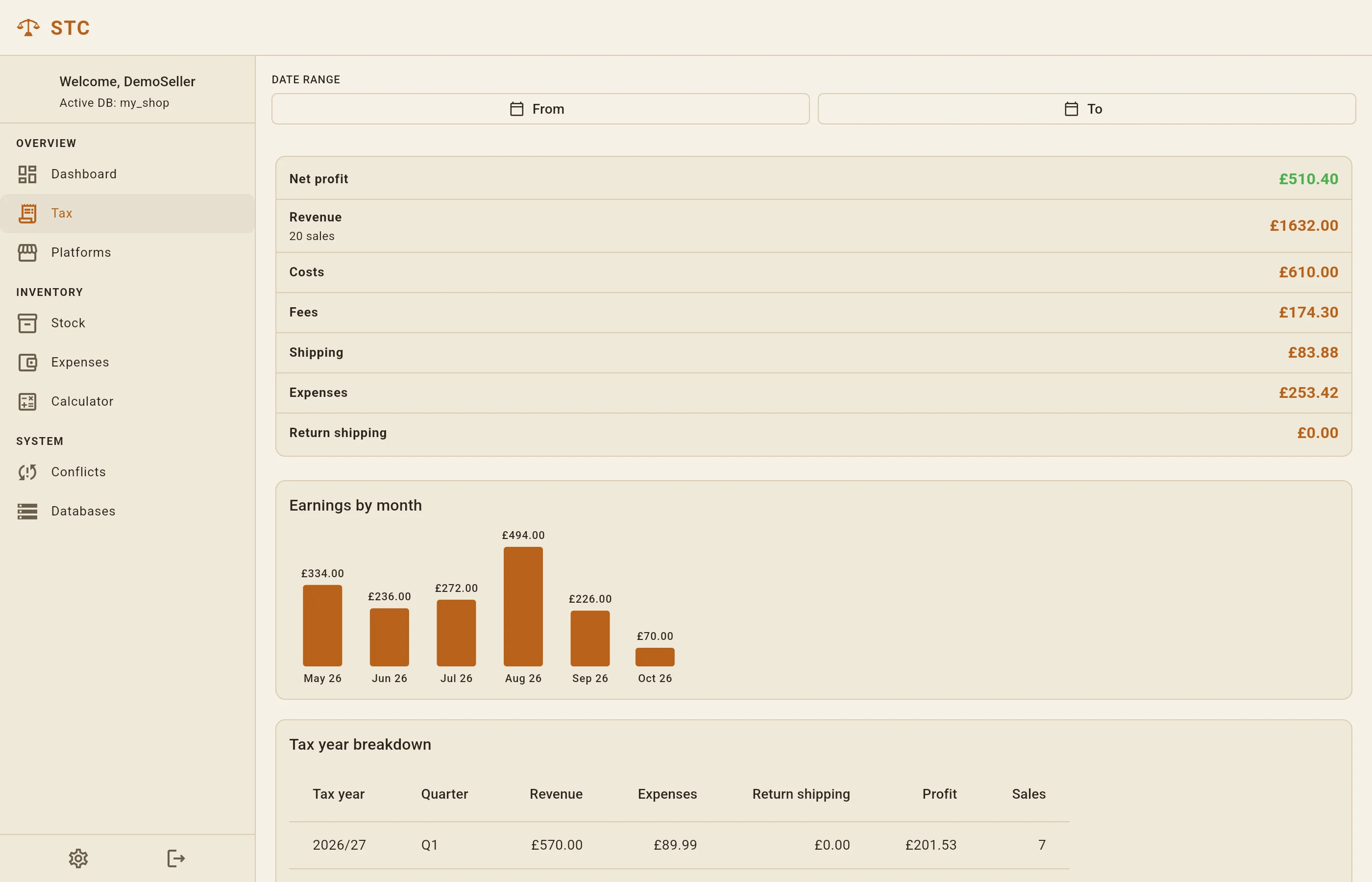
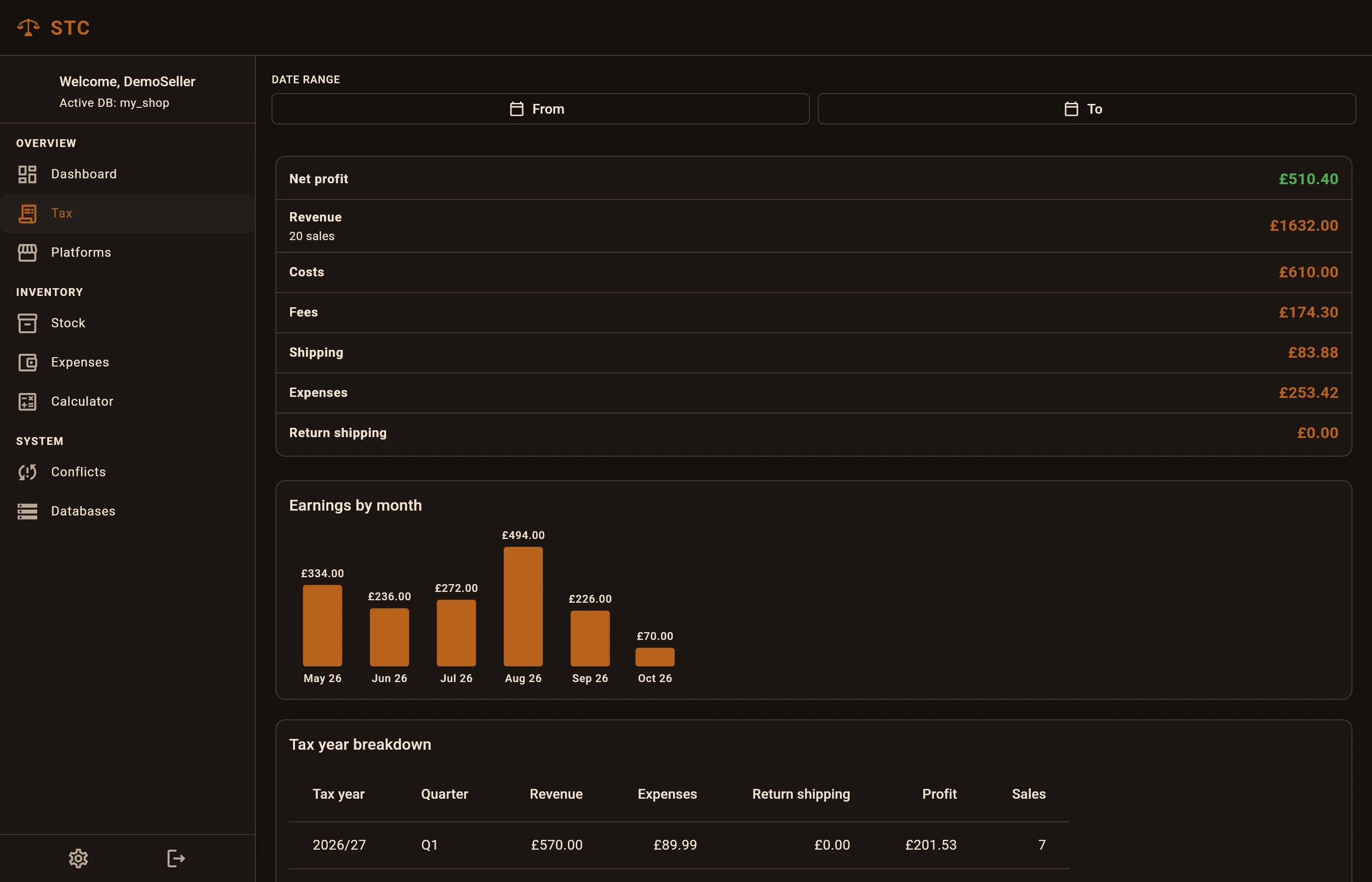
Tax adds it all up: revenue, costs, fees, postage and expenses, earnings by month, and a breakdown by UK tax year and quarter. Pick a date range to focus on one year, and use Export CSV to take the figures to your tax return or accountant. Not sure what you need to declare? Start with do you have to pay tax on selling online.
Platforms puts Vinted, eBay and the rest side by side, and the Calculator tells you what to list at on each one to walk away with the amount you want.
8. Keep a copy
Your records are yours. Under Databases you can Export database to save a full copy whenever you like, and import it again later or on your own server. You can also keep more than one database, for example to keep two businesses apart, and switch between them.
STC also takes an encrypted backup of each database once a day.